
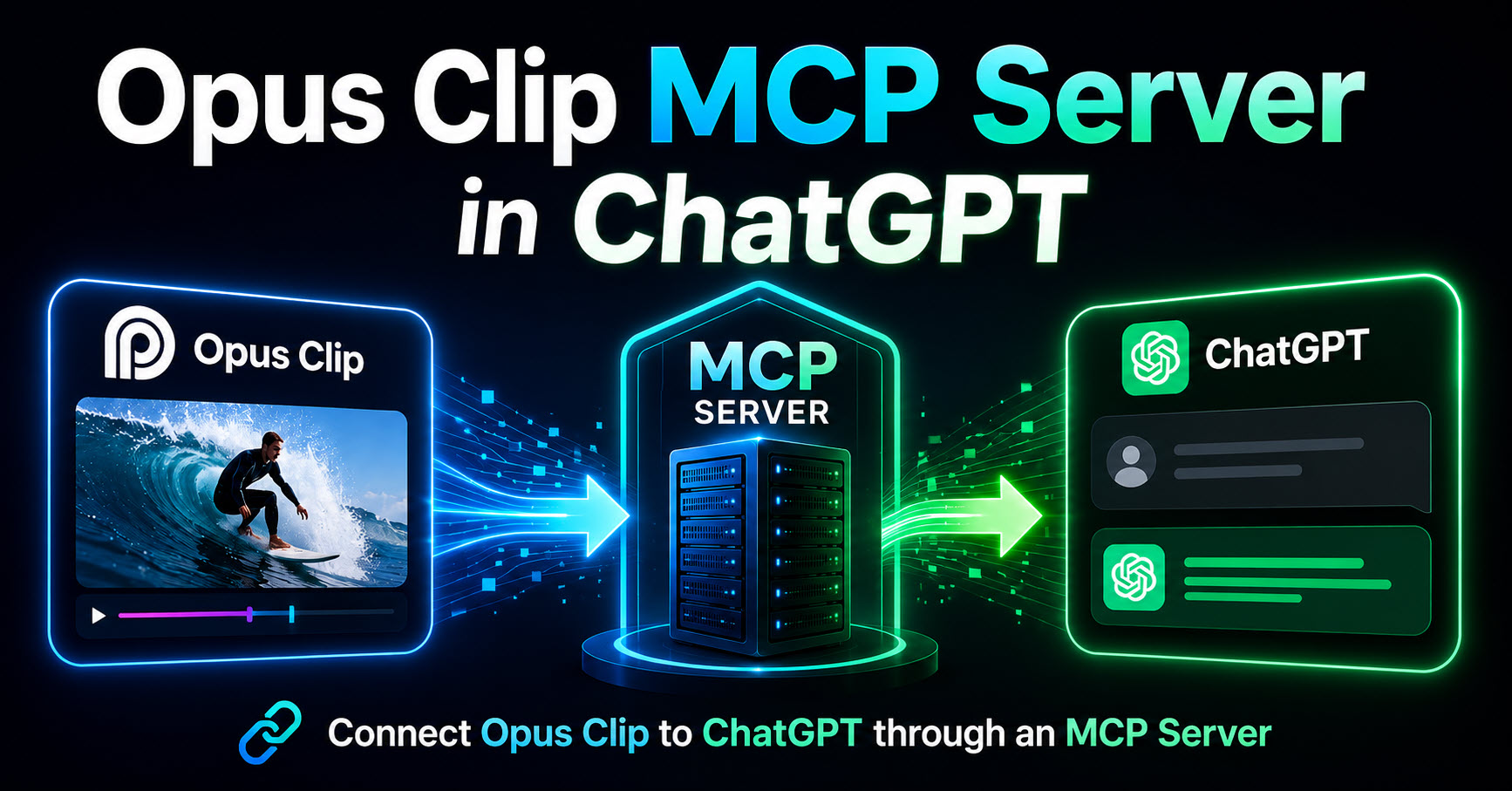
Turning a long video into Shorts is only part of the job. You may still need to inspect every clip, download transcripts, create supporting images, write titles and tags, and organize the output. The OpusClip MCP server can bring those steps into a natural-language ChatGPT workflow.
This tutorial walks through the full approach: connect the server, install reusable skills, write an explicit prompt, run a live project and verify the output. The account tiers and prices mentioned below reflect what was shown at the time of recording and may change.
Quick Links
- OpusClip
- vidIQ
- ChatGPT Workflow Prompts
- Agent Skill for YouTube Thumbnails (rename to .md from .txt)
- Agent Skill for YouTube Title and Tags (rename to .md from .txt)
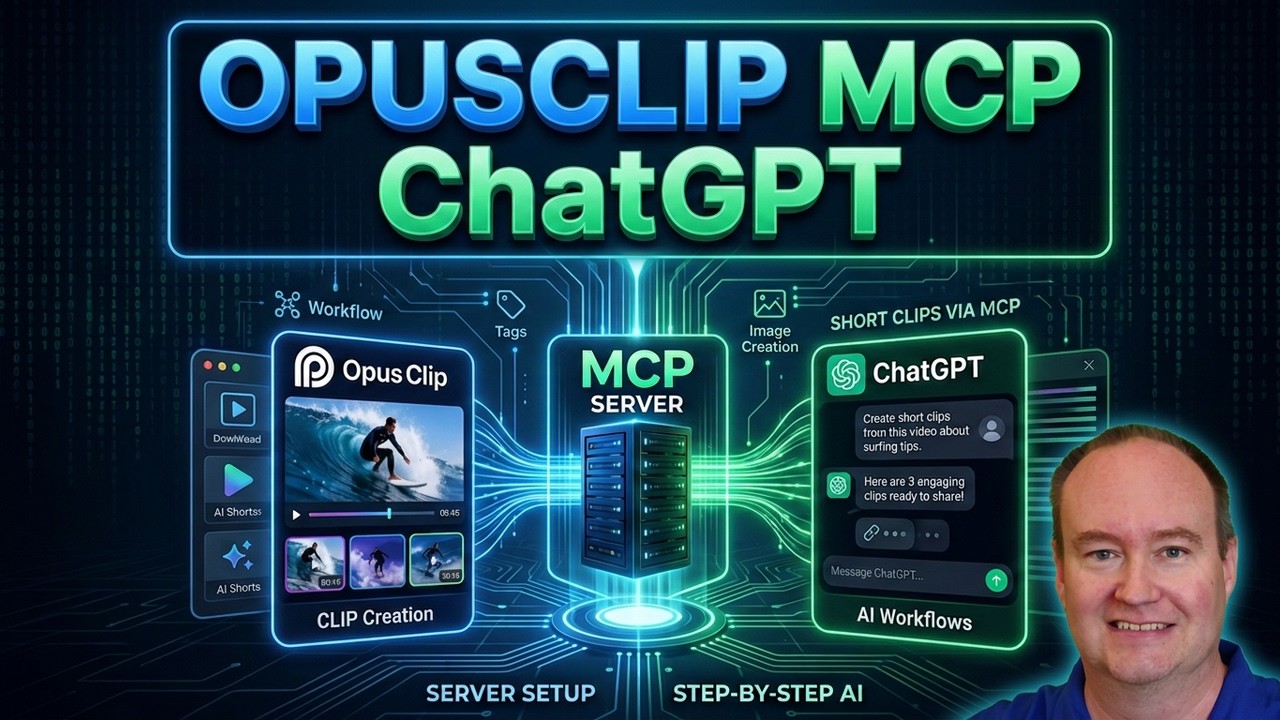
What the OpusClip MCP workflow automates
1. Import and process a source video in OpusClip.
2. Download the transcript for every generated clip.
3. Turn each transcript into a supporting Shorts image.
4. Create a title-and-tag SEO package for each clip.
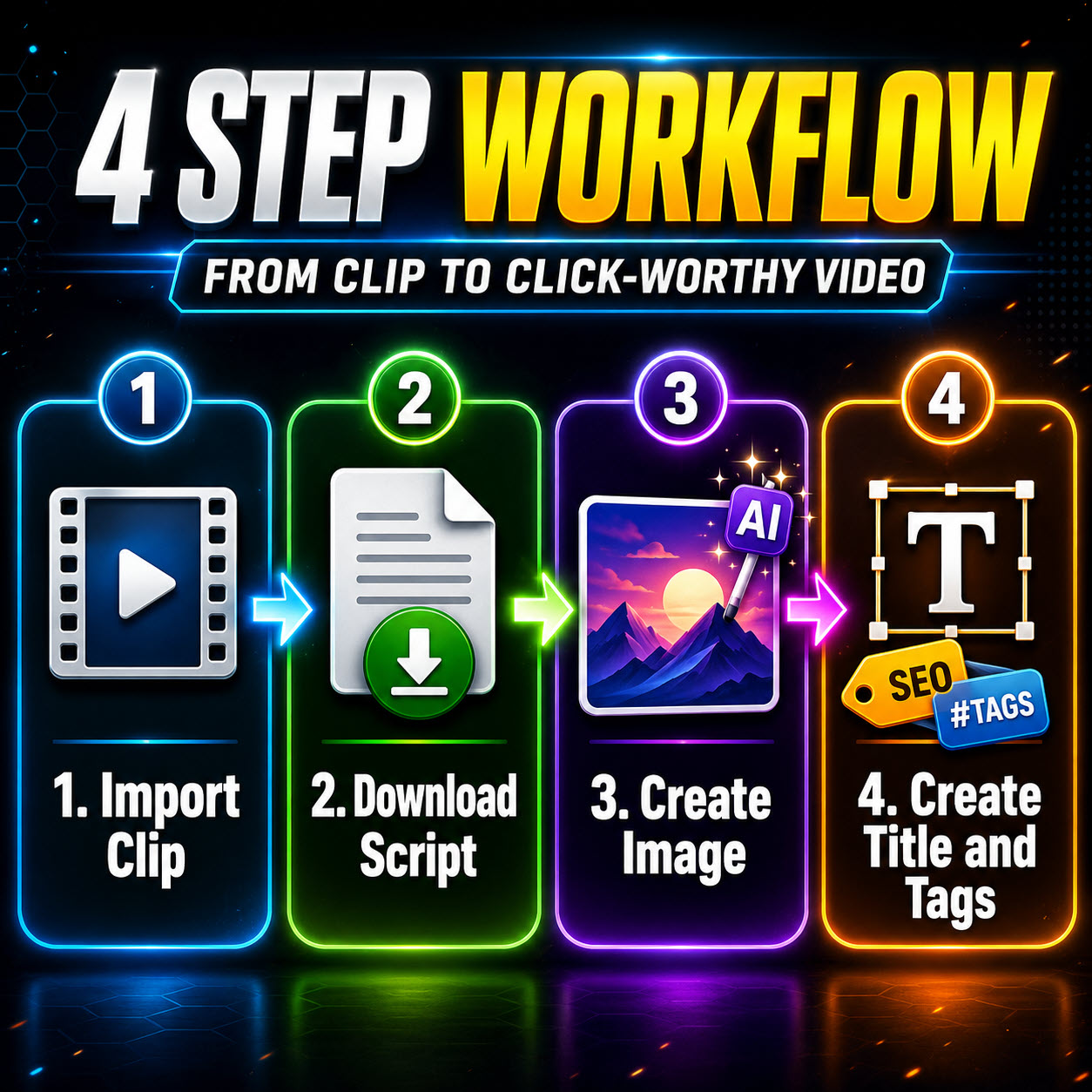
Four Step AI Workflow with OpusClip in ChatGPT
ChatGPT Prompt
-- Workflow --

1. Import Clip
2. Download script
3. Create Image
4. Create Title and Tags

-- Original Prompt --

Use Opus Clip for this YouTube video VIDEO LINK
When parsing the clip use my default settings but ensure it uses ClipAnything with lengths under 30 seconds.
Apply Brand template named Preset template 1.
Return a list of each of the clips created.
For each clip, using Opus Clip download the transcript.
Use the Transcript to create a [$youtube-short-image].
Use the Transcript to create a [$youtube-title-tags] .
Save the Transscript using the clip number and name like 1_NAME-OF-CLIP
Save the Image using the clip number and name like 1_NAME-OF-CLIP
Save the Titles and Tags using the clip number and name like 1_SeoPackage
Save to C:\\Data\OpusDemo\<Name>
Always return the Opus credits used for all calls in this request.


-- AI Enhanced Prompt --

# Opus Clip → Shorts Packaging Pipeline

## Step 1 — Create the clips

**All Opus Clip operations in this entire run — video processing, clip listing, transcript downloads, and credit reporting — MUST go through the Opus Clip MCP Server tools.** Never use browser automation, the Opus Clip web UI, or guessed API calls as a substitute. If the Opus Clip MCP Server is not connected or its tools are unavailable, STOP immediately and tell me — do not attempt the task another way.

1. Use the Opus Clip MCP Server to process this YouTube video: VIDEO LINK
2. Use my default project settings with these overrides:
   - Clipping mode: **ClipAnything**
   - Maximum clip length: **30 seconds**. If any generated clip still exceeds 30 seconds, keep it but flag it in the final report — do not silently include or discard it.
   - Brand template: **Preset template 1** (exact name).
3. When processing completes, list every clip created: clip number, Opus Clip's title, and duration.

Every clip in that list goes through Step 2. All of them.

## Step 2 — Per-clip loop

Repeat ALL of the following for each clip, in order (clip 1 fully finished before clip 2 starts):

1. **Transcript** — download this clip's transcript via the Opus Clip MCP Server.
   Save as `{N}_{NAME-OF-CLIP}.txt`
2. **Short image** — run [$youtube-short-image](C:\Users\swthomas98\.codex\skills\youtube-short-image\SKILL.md), deriving the image description from this clip's transcript (distill the transcript's hook per the skill's rules).
   Save the image as `{N}_{NAME-OF-CLIP}.png`
3. **Titles and tags** — run [$youtube-title-tags](C:\Users\swthomas98\.codex\skills\youtube-title-tags\SKILL.md) on this clip's transcript.
   Save the output as `{N}_SeoPackage.md`

**Naming rules:**
- `{N}` = clip number from the Step 1 list.
- `{NAME-OF-CLIP}` = Opus Clip's title, sanitized: spaces → dashes; strip every character that is not a letter, number, or dash. The transcript (.txt) and image (.png) share this same base name.

## Step 3 — Save location

Save all files flat into `C:\Data\OpusDemo\{VIDEO-NAME}` (create the folder if it does not exist).

**Resolving `{VIDEO-NAME}`, in this order:**

1. Use the YouTube video's title, sanitized with the same rule as clip names: spaces → dashes; strip every character that is not a letter, number, or dash (e.g., "Logic Apps: Easy Auth vs SAS?" → `Logic-Apps-Easy-Auth-vs-SAS`).
2. If the video title cannot be determined, use the Opus Clip Project ID for this run instead, exactly as Opus Clip reports it.
3. Never fall back to a generic or invented folder name. Resolve the folder name ONCE at the start of the run and state it before saving anything — every file in this run goes into that one folder.

## Step 4 — Final report (always produce this, even if some steps failed)

1. The resolved save folder path, and whether it came from the video title or the Project ID.
2. A table: clip # | clip name | duration | files saved.
3. **Opus credits used for every call in this request, itemized per call, with a total.**
4. Any clip over 30 seconds, and any step that failed.

## Rules

- Every Opus Clip interaction uses the Opus Clip MCP Server tools — no exceptions, no fallback methods. Credits reported in Step 4 are the credits consumed by those MCP calls.
- Do not stop, summarize, or ask for confirmation between clips. The task is complete only when every clip has all THREE files saved (transcript, image, SEO package). Ending early is a task failure.
- If a step fails for one clip, retry it once; if it fails again, note the failure and continue with the remaining clips. Never let one clip's failure abandon the batch.
- Ask me before re-running Opus Clip video processing (it costs credits). Every other step proceeds without asking.
- Never invent a transcript, score, or clip name — if a value is unavailable, mark it as missing in the report.
Set up ChatGPT, skills, and the MCP server
youtube-short-image Agent Skill (save as .md file)
---
name: youtube-short-image
description: Generate polished vertical cover images for YouTube Shorts directly in ChatGPT with the built-in image generation tool, featuring Stephen W. Thomas from the bundled portrait reference. Use when the user asks for a YouTube Short image, Shorts thumbnail or cover, vertical title card, 9:16 short-form video artwork, or a similar TikTok or Reels cover, including requests such as "make an image for my short about X."
---

# YouTube Short Image

Create the finished cover with ChatGPT's built-in image generation tool and return it inline in the conversation. Do not substitute SVG, HTML, canvas, local drawing code, or an external image-generator prompt unless the user explicitly requests one of those formats.

## Workflow

1. Extract the topic, audience, hook, mood, exact requested text, colors, and any user-supplied reference-image role from the request.
2. Proceed without clarification when reasonable defaults are safe. Ask only when a missing detail would materially change the concept.
3. Distill the headline to 2-6 words. Preserve quoted or explicitly supplied text verbatim; otherwise favor a clear, curiosity-driven hook without inventing unsupported claims.
4. Locate `assets/StephenWThomas.jpg` relative to this `SKILL.md`, inspect it, and use it as the required identity reference for Stephen W. Thomas.
5. Build one production-oriented image prompt using the specification below. Make Stephen a prominent focal subject and explicitly request a faithful, recognizable likeness based on the bundled portrait. Adapt pose, expression, clothing, lighting, and setting to the topic without changing his identity-defining facial features.
6. Call the built-in image generation tool with the absolute path to `assets/StephenWThomas.jpg` in `referenced_image_paths`. Do not omit the portrait from the call unless the user explicitly asks not to feature Stephen.
7. If the user supplied additional reference or edit images, identify each image's role, inspect local files before using them, and include them alongside Stephen's portrait in `referenced_image_paths`. Include only relevant images.
8. Inspect the generated image for Stephen's recognizable likeness, composition, legibility, exact spelling, safe-zone placement, anatomy, artifacts, and unwanted UI or watermarks.
9. If a material issue exists, make one targeted correction and generate an improved version. Keep the bundled portrait attached to the correction call. Do not create extra variants unless requested.
10. Present the final image inline. State the headline used and, when useful, offer one alternative headline in text.

## Image specification

Use this structure and omit lines that do not help:

```text
Use case: ads-marketing
Asset type: YouTube Shorts cover / vertical title card
Primary request: <the user's topic and intended message>
Subject: Stephen W. Thomas as the prominent human focal subject, using the supplied portrait as the identity reference; <topic-specific pose, expression, or symbolic element>
Style/medium: <photorealistic, editorial illustration, bold 3D, or another fitting raster style>
Composition/framing: portrait 9:16; mobile-first; one unified scene; Stephen shown prominently in a flattering close-up or chest-up crop; visual center shifted slightly left; leave clear space for the headline; strong focal point; generous breathing room
Lighting/mood: <mood and lighting>
Color palette: 2-3 high-contrast colors with one accent color
Text (verbatim): "<headline>"
Text layout: very large bold headline on 2-4 short lines; readable at phone-thumbnail size; place all text within the central safe area
Safe zones: no critical text or focal detail in the top 12%, bottom 22%, or rightmost 17%; full-bleed background
Identity fidelity: preserve Stephen's recognizable facial structure, hairline, eye color, skin tone, and natural appearance from the reference; avoid substituting a generic person or celebrity
Constraints: one concept; Stephen is the dominant human focal element; no more than three minor decorative elements
Avoid: fake player controls, play buttons, subscribe buttons, progress bars, platform UI, logos not supplied by the user, watermarks, collage, grid, split panels, clutter, tiny text
```

## Design judgment

- Use one focal subject and one short headline. Let imagery support the hook rather than compete with it.
- Feature Stephen in every generated cover unless the user explicitly requests that he be omitted. Treat `assets/StephenWThomas.jpg` as an identity reference, not as a requirement to preserve its white background, blue shirt, exact crop, or neutral expression.
- Prefer a dark or saturated background, white or near-white headline text, and one bright accent color.
- Make the headline survive a 180-pixel-wide preview. Shorten it before shrinking it.
- Place critical content inside the approximate safe region: horizontal 6%-83%, vertical 13%-77%.
- Use at most one energy device: a diagonal, radial glow, motion streak, or slight headline tilt.
- Never add unrequested branding, unsupported claims, fake interface elements, or a watermark.
- Treat visible text as a validation item. If spelling or wording is wrong, regenerate with the exact phrase emphasized and change nothing else.

## Multiple concepts

When the user requests multiple options, make each option a separate built-in image generation call with a genuinely distinct concept, composition, and accent color. Present each image separately; never combine options into one canvas.
youtube-title-tags Agent Skill (save as .md)
---
name: youtube-title-tags
description: "Generate YouTube packaging metadata from a video transcript: 2-3 viral high-engagement title options, 2-3 SEO search-focused title options, and 3-5 tags. Use this skill whenever the user provides a YouTube transcript (pasted text, uploaded .txt/.srt/.vtt, or raw auto-captions) and wants titles, title ideas, SEO titles, tags, keywords, or metadata — even if they just drop a transcript and say 'give me titles' or 'package this video.'"
---

# YouTube Titles and Tags from Transcript

Turn a video transcript into ready-to-use packaging: viral titles, SEO titles, and tags. All output must be grounded in what the transcript actually says.

## Step 1 — Ingest the transcript

Accept any of: pasted text, an uploaded file (.txt, .srt, .vtt, .md), or raw YouTube auto-captions. Before analysis:

- Strip timestamps, caption sequence numbers, and `<c>` styling tags.
- Auto-captions have no punctuation and mis-hear technical terms — infer the intended term from context (e.g., "logic apps standard", "a p i m") and use the CORRECT spelling in all output.
- Read the whole transcript. Extract: the core topic, the hook/opening claim, 3-5 main points, any unique or surprising claim, named products with exact versions, the outcome or payoff, and the target audience.
- Detect format: a transcript under ~250 words is likely a Short — titles should be punchier (≤50 chars).

If no transcript is present or it is too thin to identify a topic, ask for it — never invent content.

## Step 2 — Ground rules for every title

- **True to the transcript.** Never promise anything the video doesn't deliver. If the transcript shows one method, the title cannot say "5 Ways."
- **Length:** target ≤60 characters, hard max 70 (YouTube truncates). Front-load the payoff or keyword into the first 40 characters.
- Exact product names, versions, and acronyms spelled correctly (Logic Apps Standard, APIM, .NET 10 — as the transcript intends, not as captions garbled them).
- Sentence case or Title Case. At most ONE emphasized ALL-CAPS word. No emoji unless the user's channel style uses them. No clickbait punctuation spam ("?!?!").
- The two title sets must not overlap — a viral title rewritten with a keyword is not an SEO title.

## Step 3 — Viral titles (write 2-3)

Optimize for click-through in browse/suggested feeds, where emotion beats keywords. Use a DIFFERENT technique for each option:

- **Curiosity gap** — withhold the answer the transcript provides: "Microsoft Quietly Killed the Best Part of BizTalk"
- **Stakes / warning** — consequence of not watching: "Stop Securing Logic Apps With SAS Keys"
- **Bold claim / contrarian** — a defensible strong take from the transcript: "Easy Auth Beats API Keys Every Time"
- **First-person test / build** — "I Migrated 200 BizTalk Maps With AI"
- **Transformation / result** — before-to-after payoff with a number if the transcript has one.

Numbers, negations ("stop", "never", "wrong"), and specificity outperform vague hype. The curiosity gap must be closed by the video.

## Step 4 — SEO titles (write 2-3)

Optimize for search results, where matching the query beats cleverness.

1. Identify the **primary keyword phrase** — the exact words the target viewer would type (e.g., "secure logic apps http trigger", "apim backend pool bicep"). Prefer the transcript's own terminology.
2. Front-load that phrase, then complete it naturally using proven search formats: `How to <X>`, `<X> Tutorial`, `<X> vs <Y>`, `<X> Explained`, `Fix <error>`, `<X> Step by Step`, `<X> for Beginners`.
3. Each option should target a slightly different query variant (how-to vs comparison vs explainer). Add the year only when freshness matters for the search ("in 2026").

## Step 5 — Tags (write 3-5)

Order matters — YouTube weighs earlier tags more:

1. First tag = the primary keyword phrase, exactly.
2. Then 1-2 specific secondary phrases (other searchable terms from the transcript, including a common misspelling or alternate name if one exists — e.g., "api management" for APIM).
3. Last tag = one broad category term ("azure tutorial", "ai news").

Lowercase, multi-word phrases allowed, no duplicates of each other, no tags about content not in the video.

## Step 6 — Output format

Deliver exactly this structure, in chat (no file unless asked):

```
## Viral titles
1. <title>  — (technique, char count)
2. ...

## SEO titles
1. <title>  — (target query, char count)
2. ...

## Tags (paste-ready)
tag one, tag two, tag three, tag four, tag five
```

Keep rationales to a few words. End with one line offering to adjust tone, target a different keyword, or generate a matching description.
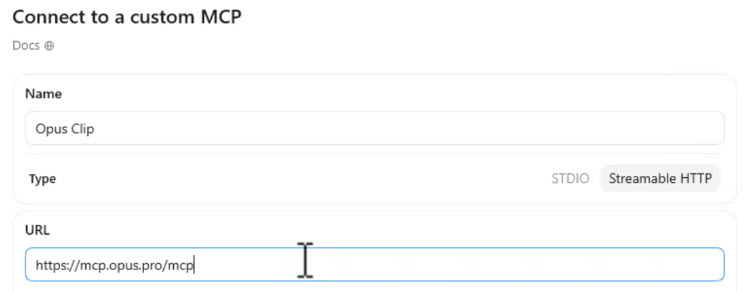
ChatGPT Custom OpusClip MCP Server
Write a prompt that an agent can execute reliably
The strongest prompt-design lessons from the demonstration are:
- Require every OpusClip action to use the OpusClip MCP server.
- Use exact names and casing for settings such as the brand template.
- Define the complete per-clip loop instead of assuming it will continue.
- Resolve filenames and the save folder once, using clear sanitization rules.
- -State when retries are allowed and when the workflow must stop.
- Require failures and credit usage to be reported rather than inferred.
These guardrails became especially important after an earlier attempt used browser automation instead of MCP. The presenter also describes a vidIQ test in which a public image URL was required; without an explicit stop condition, the AI appeared to report a result even though the real call had not succeeded.
What happened in the live run
The full demonstration was completed in 15 minutes and 39 seconds. OpusClip produced six clips. The workflow saved a transcript, an image, and an SEO package for each clip, then presented a report listing the generated files and MCP calls.
I verified the assets in the local file system and checked the OpusClip project in the web portal. The portal showed the same six clips, and the displayed credit balance moved from 195 to 185, matching the reported use of 10 credits.
At the time of the recording, the MCP server did not support uploading the generated media back into OpusClip. This would be a nice future opportunity, along with using vidIQ to score an image and trigger a retry when it falls below a chosen threshold.
Key lessons learned
- MCP lets a user control supported external tools through natural language without writing direct API code.
- Focused skills make image and SEO generation reusable outside one project.
- Detailed prompts reduce avoidable variance and clarify the entire batch workflow.
- Honest failure handling is as important as the happy path.