
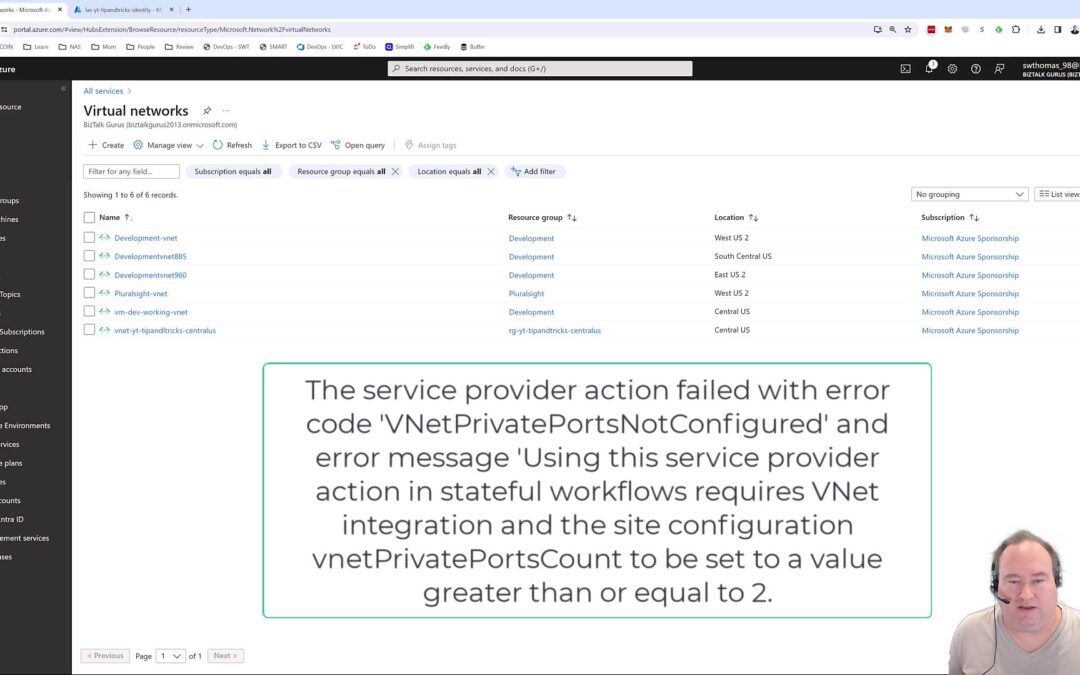
When working with some in-app connectors inside Azure Stateful Standard Logic Apps, a Virtual Network is needed for the connectors to work for stateful workflows.
This applies to the following in-app connectors
- Service Bus
- SAP
- IBM MQ
If you do not add the virtual network, you will receive the following error:
The service provider action failed with error code 'VNetPrivatePortsNotConfigured' and error message 'Using this service provider action in stateful workflows requires VNet integration and the site configuration vnetPrivatePortsCount to be set to a value greater than or equal to 2.
This can easily be fixed by adding a virtual network and adjusting the ports.
Adding the Virtual Network to a Standard Edition Logic App
Once you have created your Virtual Network, follow the steps below. See the reference video below for sets to create the VNet.
Navigate to the main page of the Standard Edition Logic App. Under Setting, select Networking.
Under Outbound traffic configuration, click on Not configured to set the VNet.
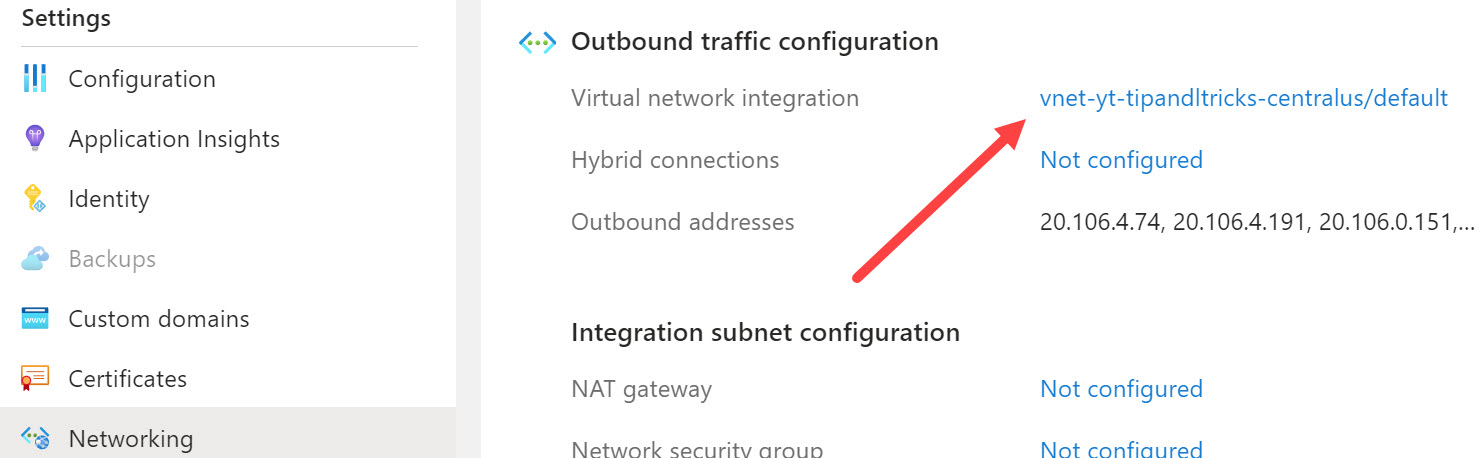
Adjust the VNet Private Ports in the Logic App
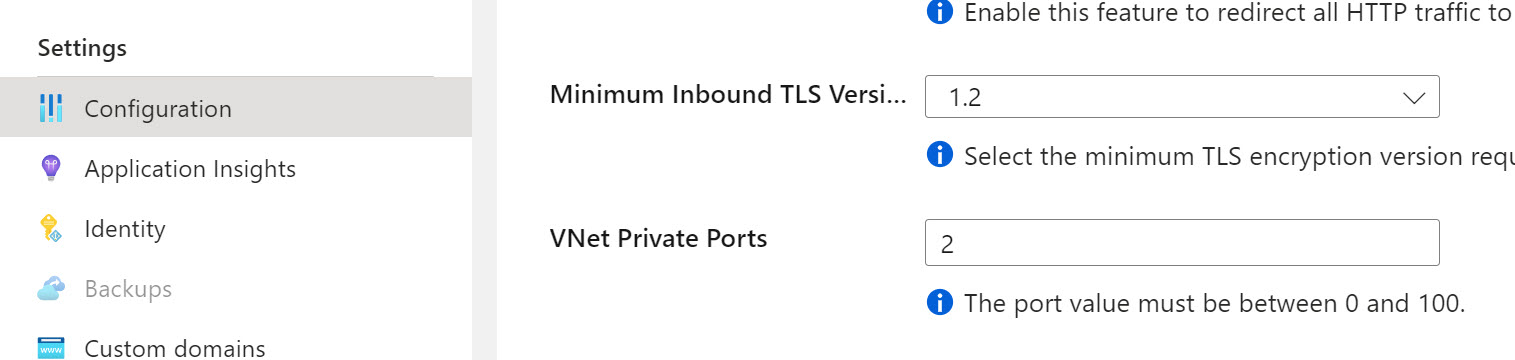
Navigate to the main page of the Standard Edition Logic App. Under Setting, select Configuration.
Under General Settings, look for VNet Private Ports. Set it to 2 or more.
See this in action in the YouTube video below.
Looking for other Azure quick tips and tricks, check them all out here: https://www.stephenwthomas.com/azure-integration-services-tips-and-tricks/
References
- Enable stateful mode for stateless built-in connectors in Azure Logic Apps
- 142 - Connecting Azure Logic Apps (Standard) instance to a VNET
