
It is easy to get up and running with Logic Apps in Azure - just remember there are costs around every corner!
To deploy Logic Apps Standard to Azure, create a Standard logic app with a Workflow Service Plan, then use the web portal to create a new workflow or deploy your local project to that resource from VS Code. It's that easy!
In the video below, I use the portal to show how the hosting pieces fit together, then move the local project into that environment. This walkthrough follows the demo in the video, including the HTTP endpoint and cleanup decisions you need to make along the way.

Before you start
You need an Azure subscription that lets you create the required resources and a local Logic Apps Standard project in VS Code (optional).
Azure hosting incurs charges. For this demo, I create a separate resource group so the resources are easier to identify when I am done. The portal layout can change; the diagrams below come from the recorded walkthrough.
1. Choose the Standard hosting plan
In the Azure portal, create a Logic App resource and select Standard with a Workflow Service Plan (WSP). Consumption remains a valid choice for usage-based workloads, but this walkthrough uses Standard to host a local project with multiple workflows.
Keep three levels in mind: the service plan provides hosting capacity, the logic app contains your application, and the workflows live inside that application. Several logic apps can share a suitable plan in the same region. Workflows inside one logic app also share application-level configuration.
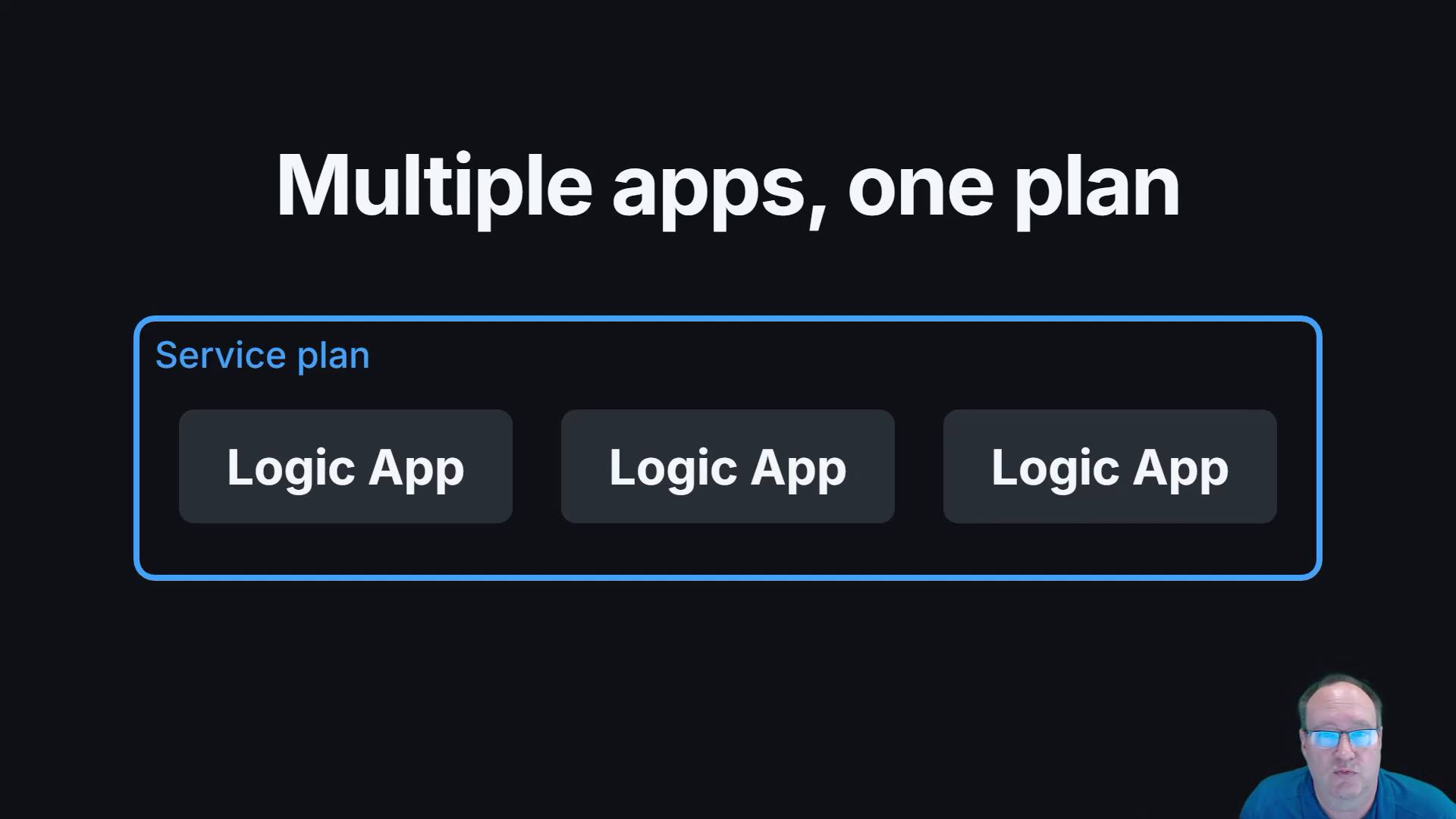
The demo uses the smallest Workflow Service Plan tier, WS1. The video gives example costs, but check the current estimate for your region and subscription before creating resources. Standard capacity is billed while provisioned, even when workflows are idle. Storage and managed connector usage can add charges. Right now it's around $180 per month or about 25 cents per hour.
You do not need App Service Environment v3 just to get VNet integration. Standard on a Workflow Service Plan supports outbound VNet integration and inbound private endpoints. These are separate configurations: connecting outbound traffic to a VNet does not by itself make the HTTP trigger private. ASE v3 is another hosting option for workloads with additional isolation requirements.
2. Create the Azure resources
- Select the subscription and create or choose a resource group.
- Enter a unique logic app name and choose the Azure region.
- Create a Windows Workflow Service Plan, or select a compatible existing plan in that region. Choose the capacity tier for your workload.
- On Storage, create or select the storage account used by the logic app.
- Review networking, monitoring, authentication, and tags, then use Review + create.
I leave most settings at their defaults and turn off Application Insights for this short demo. For a production deployment, choose those settings deliberately based on your network, access, and monitoring requirements.
After deployment completes, open the logic app resource. The Workflows page is where you create and inspect individual workflows. Environment variables holds application settings and connection configuration. The Connections page distinguishes built-in connections from Microsoft-managed connections.
The Artifacts area also exposes schemas, maps, assemblies, and rules. If you are coming from BizTalk, those names will be familiar. Check the supported formats and dependencies for the artifacts you intend to reuse; the presence of these sections does not mean every existing BizTalk artifact can be moved unchanged.
3. Create a small stateful workflow in the portal
Open Workflows, select Create, enter a name, and choose Stateful. That is the option I use for most of the workflows in my demos. Stateful workflows persist execution state and provide run history. Stateless workflows suit short executions where you do not need the same persistence; choose based on the workload rather than assuming one is always faster.
Open the designer and add a When an HTTP request is received trigger, followed by a Response action. Save the workflow. The trigger then provides the HTTP URL for calling it.
The portal is convenient for a quick demo or for working from another workstation. For production changes across multiple environments, I prefer a local project in source control and a repeatable deployment process. You can download app content from the portal to bring an existing application into local development.
4. Secure the HTTP endpoint
The generated callback URL can contain a shared access signature. Treat the complete URL as a credential: anyone with a valid signed URL may be able to invoke the workflow, subject to the endpoint's other access controls. Do not paste it into public documentation or source control.
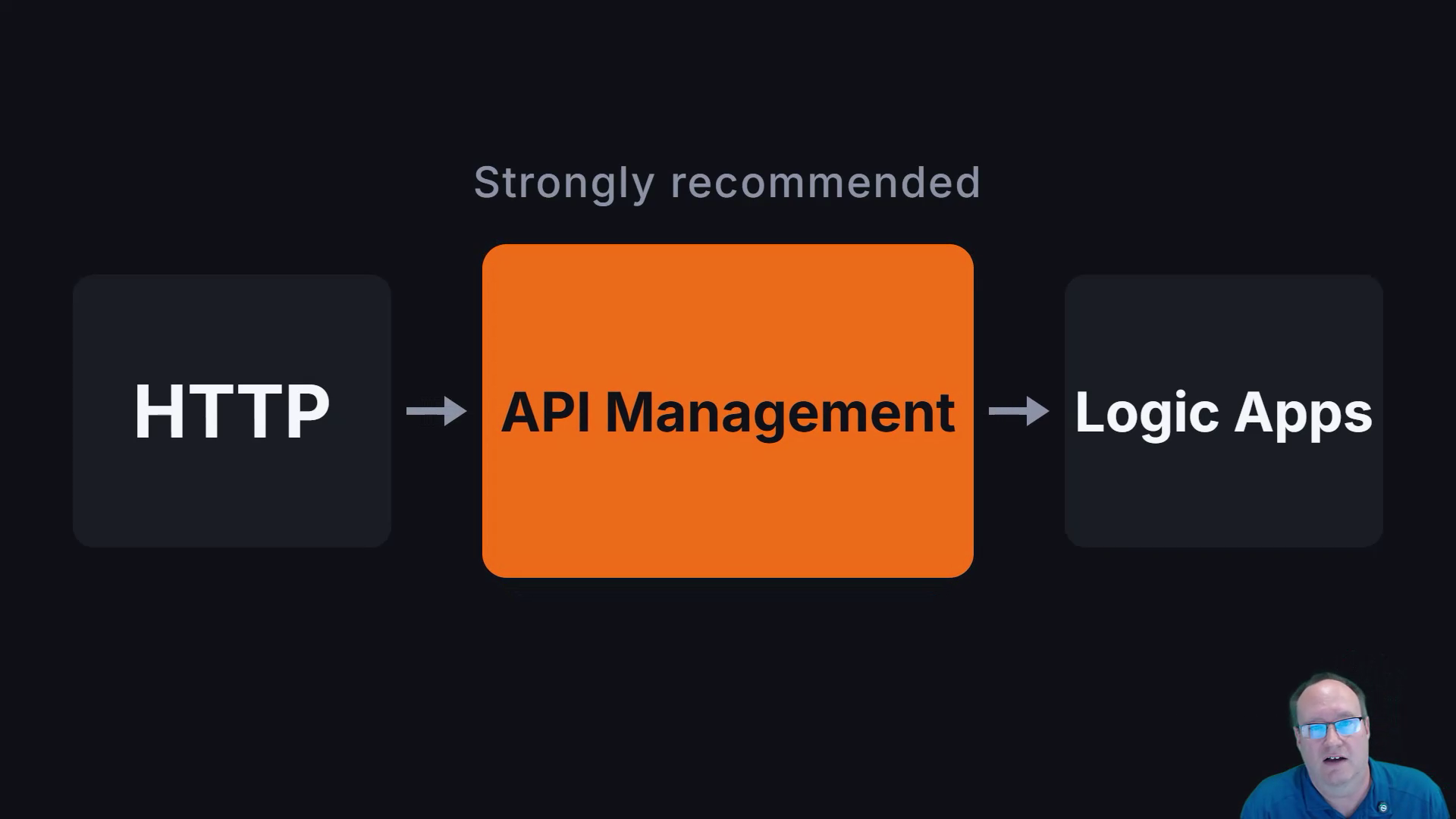
I strongly recommend putting API Management in front of HTTP-exposed logic apps. It gives you a place to manage the API consumers and policies. You still need to configure authentication to the logic app and restrict direct access when your design requires callers to use the gateway. Adding API Management alone does not close the backend endpoint.
5. Deploy Logic Apps Standard from VS Code
Open the local Standard project and save the files you intend to deploy. In the demo, I use the Azure extension's Deploy to logic app action. Depending on the extension version, the same action is available from the project context menu.
- Choose Deploy to logic app.
- Select the target Azure subscription.
- Select the Standard logic app you created in the portal.
- Read the overwrite warning and confirm only when the local project contains the application you intend to deploy.
- Wait for deployment to complete, then return to the portal and open Workflows to inspect the deployed application.
The deployment packages the project and pushes it to Azure. Microsoft documents that deploying to an existing Standard logic app overwrites the deployed version. I assume a full replacement whenever I use this route. Do not rely on a workflow created only in the portal surviving the next deployment. That said, I sometimes see mixed results here.
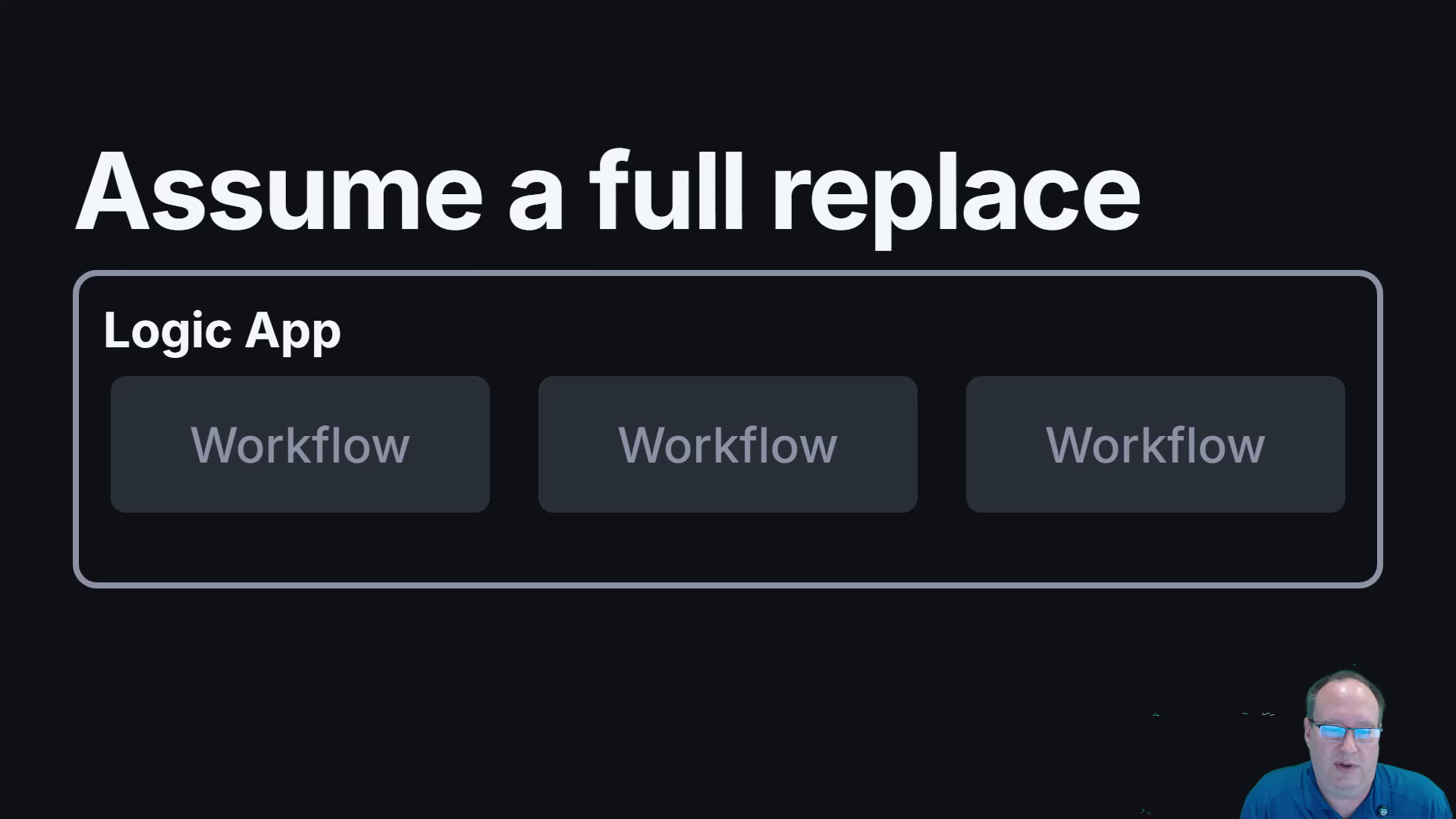
Make sure your local project contains every workflow you need. The deployment unit is the logic app, so choosing one workflow in your editor does not make this a safe way to patch only that workflow.
6. Check settings and connections in Azure
Deployment of the project does not copy all your local configuration, local.settings.json is excluded from deployment. Supply the corresponding Azure application settings separately and check connection strings, endpoints, and environment-specific values before running the application.
Use Key Vault references for secrets where appropriate. Managed connections also need the correct Azure resources and authorization for the target environment; copying workflow files alone does not establish those connections.
For repeatable releases, I recommend Azure DevOps to manage the application package and environment-specific configuration. Other CI/CD tools can do this too. Keep infrastructure provisioning and application deployment explicit so a release does not depend on someone remembering which values to change in the portal.
7. Clean up the demo resources (and stop being charged)
Before deleting the demo, preserve any workflow changes you want to keep. The logic app's Download app content action exports the application as a ZIP for local use.
Deleting the last logic app on the plan offers an option to delete the associated service plan. Review that option carefully, especially if the plan hosts other applications, although I do not think we get the option to delete it if other Apps are there. Deleting a logic app while leaving its paid hosting plan in place can leave you with ongoing charges.
Afterward, inspect the resource group for remaining storage, monitoring, and connection resources. Remove demo-only resources you no longer need after checking their dependencies. Do not assume deleting the logic app removed everything created alongside it.
For the next step, use the Azure Integration Services learning hub to continue with Logic Apps, API Management, and Service Bus!