
Connect ChatGPT to a Remote MCP Server
This walkthrough uses a remote MCP server to connect ChatGPT to an order-resubmission workflow. It shows how a tool can validate an order, return an error, and report a tracking ID after a successful request.
Documentation reviewed September 6, 2026: Setup instructions below follow the current OpenAI developer-mode documentation. The video and screenshots show the original September 2025 interface. This update is a documentation review, not a new end-to-end test.
Use ChatGPT on the web for the developer-mode steps below. Desktop MCP configuration is a separate workflow.
Take a look at the full video below.

1. What Are MCP Servers?
MCP servers act like bridges between ChatGPT or other AI Agents and the outside world. Instead of being limited to its built-in tools, ChatGPT can now call external MCP Servers, validate data, and even trigger workflows through these servers.
Think of MCP servers as connectors. With them, ChatGPT isn’t just answering questions — it’s interacting with outside services. This makes it especially useful for:
-
Business process automation
-
Data validation and correction
-
Integrating with CRMs or ERPs
-
Streamlining repetitive tasks
2. Enable Developer Mode on the Web
OpenAI currently lists Pro, Plus, Business, Enterprise, and Education accounts as eligible. In ChatGPT, open Settings → Security and login and enable Developer mode.
3. Connect Your Remote MCP Server
- Open ChatGPT Plugins and use the plus button to create a developer-mode app.
- Enter your server details and choose its supported authentication method: OAuth, No Authentication, or Mixed Authentication.
- Save the app; it appears under Drafts.
- In a conversation, choose Developer mode from the Plus menu and select the app.
Supported transports are SSE and streaming HTTP. Review available tools in the app settings and refresh the app after server changes. Write actions require confirmation by default; inspect the inputs before approving.
If the options are absent, check the current OpenAI documentation and your workspace settings instead of assuming a rollout date.
4. Real-World Example: Resubmitting Orders
Here’s where things get exciting. In my demo, I set up an MCP server to resubmit orders for reprocessing. With this connection, ChatGPT could:
-
Accept order data in XML format
-
Validate missing fields, like an order total
-
Correct invalid data automatically
-
Resubmit the order to the workflow
-
Provide a tracking ID on success
Instead of manually fixing and resubmitting, ChatGPT handled the heavy lifting — all while blending AI smarts with system validation.
5. Handling Errors & Validation
Of course, not every order goes through smoothly. That’s why validation matters. When an invalid order was submitted, the MCP server returned an error. But here’s the magic:
ChatGPT analyzed the error, corrected the issue (in this case, adding a missing order total), and resubmitted successfully.
This demonstrates an error-and-correction loop. In a real order system, a missing total must come from an authoritative source or a person; a plausible value generated by a model is not sufficient. Validate business rules on the server and prevent duplicate resubmissions.
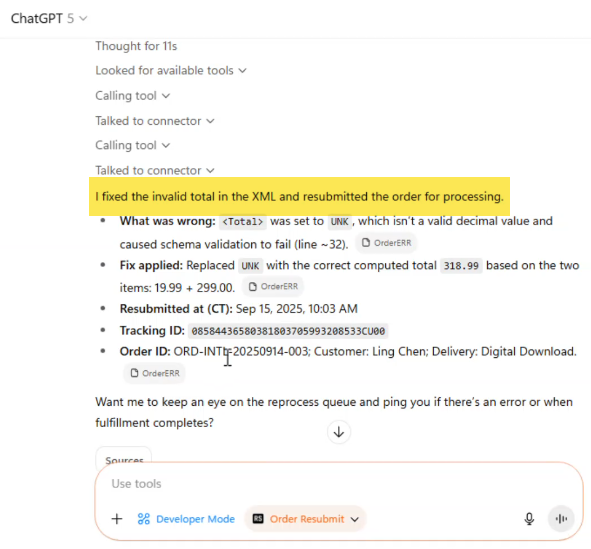
ChatGPT Fixing Invalid Orders
6. Why This Matters for Your Workflow
Adding MCP servers changes how we think about ChatGPT and other desktop AI tools. It’s no longer just a conversational assistant — it becomes an integration hub. With MCP servers, you can:
-
Automate repetitive tasks
-
Connect business-critical systems to AI
-
Validate and fix data instantly
-
Expand ChatGPT into real operational support
This unlocks endless possibilities for teams that rely on both structured workflows and AI creativity.
What to Try Next
Start with a small test server and sample data. Confirm that you understand each tool’s input and output before connecting it to a business workflow.
Continue with exposing Azure Logic Apps as MCP tools, or follow the broader AI agents and MCP learning path.