

If you are an integration developer, you already know the power of Azure Logic Apps. But what if you could easily take the countless number of workflows you've already built and expose them directly to AI agents?
Thanks to the latest feature enhancements in Azure Logic Apps (Standard), you can now securely expose your existing HTTP-based logic as Model Context Protocol (MCP) servers. This completely changes the game for how AI agents interact with your enterprise data.
In this post, we’ll explore why you should use these new features and walk through a real-world example of securely exposing a backend SQL Server database to an AI agent in VS Code.

Why Expose Logic Apps as MCP Servers?
Before these updates, integrating AI with enterprise data was often a clunky process involving custom middleware or complex API management. Now, exposing a Logic App as an MCP server offers three massive benefits:
- Reuse Existing Logic: If you already have a workflow that handles complex business rules (like calculating shipping or formatting orders), you don't need to rewrite it for an AI agent. Just expose it.
- Instant Access to 1,400+ Connectors: Logic Apps come with a massive ecosystem of connectors. By turning a Logic App into an MCP server, your AI agent instantly gains the ability to interact with SQL Server, SAP, Salesforce, or any other supported system.
- Enterprise-Grade Security: You control exactly how the AI accesses your data. The new tooling introduces simple Key-Based Authentication, allowing you to generate API keys with specific expiration dates (24 hours, 7 days, 30 days, etc.), or you can use EasyAuth.
Step-by-Step: Building a "Product Search" MCP Server
Let's look at how easy it is to create a brand-new workflow that queries a custom SQL Server database and exposes it to an AI agent. (Note: This feature is currently available for Logic Apps Standard, not Consumption).
Step 1: Create the MCP Server in Azure Navigate to your Logic App in the Azure Portal. Under the "Agents" menu, you will now see an MCP Servers blade. Here, you can choose to expose an existing workflow or create a brand new one.
For our example, we’ll create a new workflow called product-search.
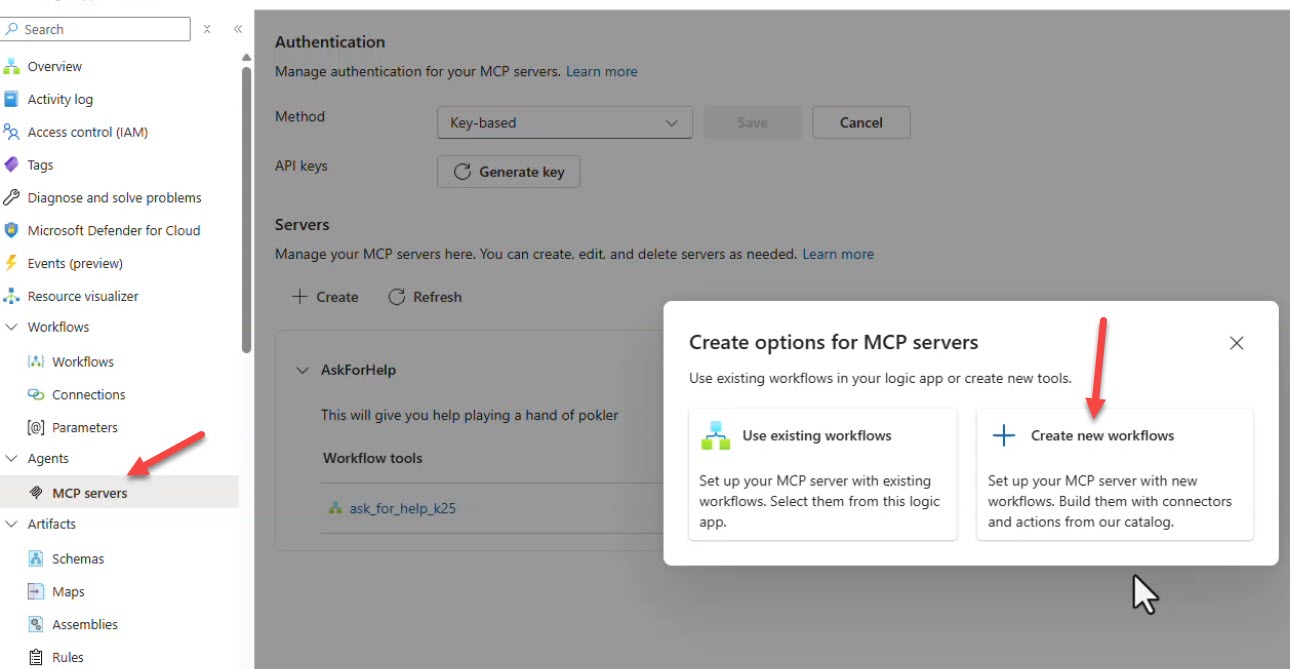
Create MCP Server Workflow
Step 2: Add the SQL Server Connector Inside the new workflow, add a SQL Server connector and select the "Execute Stored Procedure" action. We will configure this to call a specific stored procedure in our database—for example, one that checks inventory pricing and availability based on a Name of Product parameter.
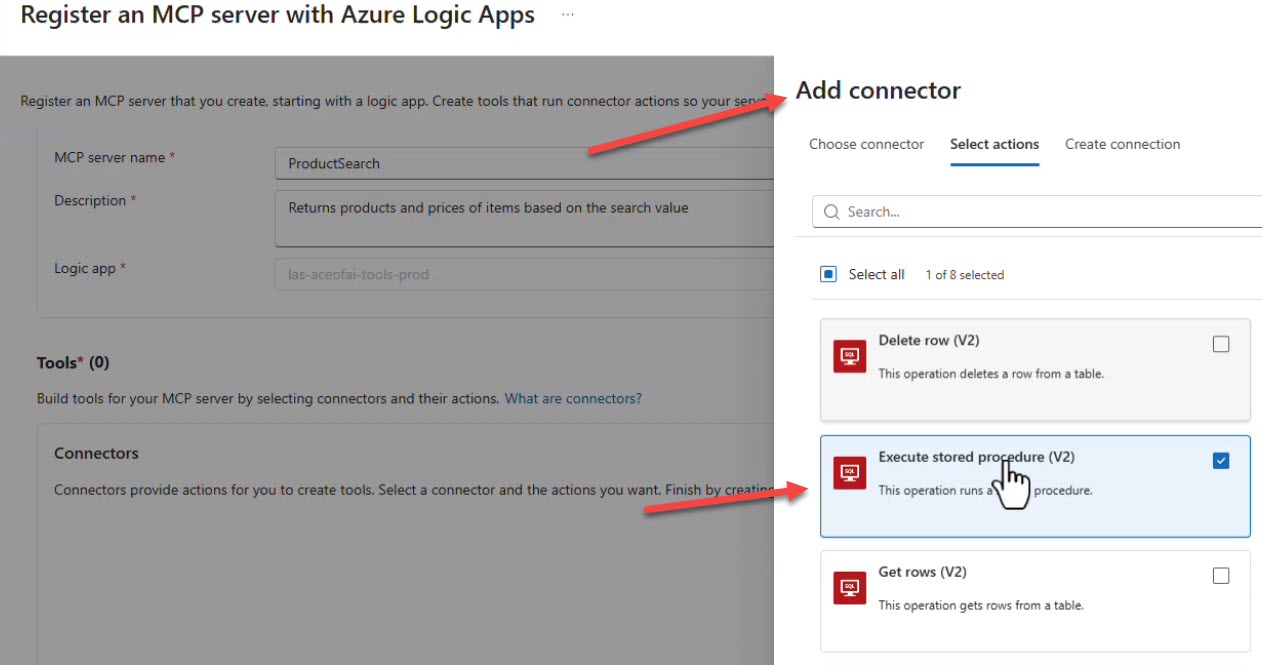
Add Connector MCP Server
Step 3: Define the JSON Schema To ensure the AI agent knows exactly what to send, we define a strict JSON schema in the HTTP Request trigger. We set Name of Product as a required parameter. The workflow now knows to take that exact parameter and pass it into the SQL Stored Procedure.
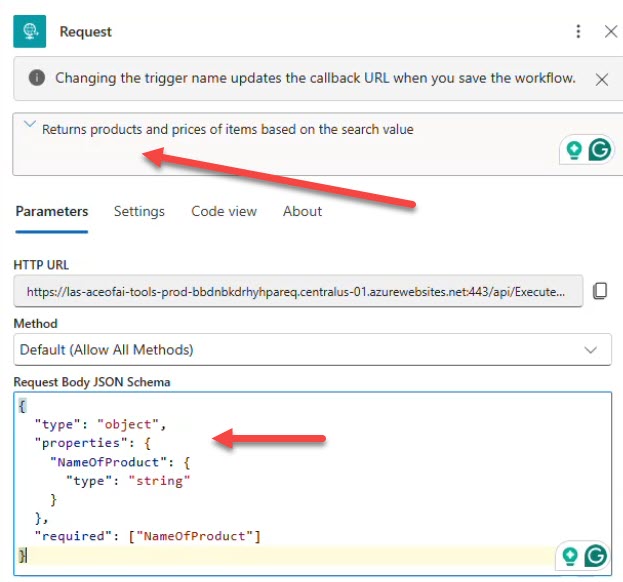
Configure Workflow HTTP Request
Step 4: Generate the API Key Back in the MCP Servers blade, we can generate a secure API key. (Make sure to copy this immediately, as Azure will hide it once you navigate away!) You will also copy the newly generated MCP Server URL.

Set MCP Server Key
Pro Tip: I highly recommend setting up a custom domain in Azure for your Logic Apps. It makes the endpoint URLs much cleaner and easier to manage when configuring your AI environments!
Testing the MCP Server in VS Code
Now comes the fun part. We can jump into an AI-enabled IDE like VS Code and configure it to use our new MCP server.
- Add the MCP server URL.
- Pass the API Key in the headers using
x-api-key. - Start chatting!
Because we exposed the SQL database through the Logic App, we can now ask the AI natural language questions like:
"What products do I have with DDR5 memory?"
The AI agent understands the tools available to it via the MCP server, calls the Logic App with the correct parameter, and retrieves the live SQL data.
But it gets better. Because the AI has reasoning capabilities, we can ask complex analytical questions:
"Based on the inventory, which RAM product will give me the most total profit?"
The AI will dynamically query the data, calculate the cost versus retail price, multiply it by the quantity on hand, and return a highly accurate business insight—all without you writing a single line of SQL or Python logic!
The Future of Enterprise AI Integration
This is just a simple inventory example, but imagine the possibilities when applying this to live order data, customer support tickets, or HR systems. The new MCP server tooling in Azure Logic Apps bridges the gap between traditional enterprise integration and next-generation AI agents.