
Are you ready to dive into the world of Google’s powerful AI models?
Whether I am looking to generate dynamic text, create stunning images, or even produce AI-driven videos, I’ve found the Google Gemini API to be a unified framework that can handle it all.
If you are a developer or a technical architect looking to integrate Gemini into your automated workflows, this guide is for you.
The Big Three LLM Frameworks
Before I jump into the code, I think it’s important to understand where Google Gemini sits in the broader AI landscape. Currently, I see three core frameworks for interacting with Large Language Models (LLMs) via API:
-
OpenAI Framework: The most widely adopted ecosystem. Many open-source and third-party models are “OpenAI-compliant,” meaning I can seamlessly swap models by just changing my API key and URL.
-
Anthropic Framework: Highly tailored for coding and reasoning tasks, which I find popular among developers who rely heavily on models like Claude for code environments.
-
Google Gemini Framework: A highly specialized ecosystem designed to interact directly with Google’s proprietary text, image, video, and audio models.
While I noted that Gemini might not have the same universal “plug-and-play” third-party support as OpenAI, its RESTful JSON architecture makes it incredibly versatile for the workflow tools I use, like Azure Logic Apps.
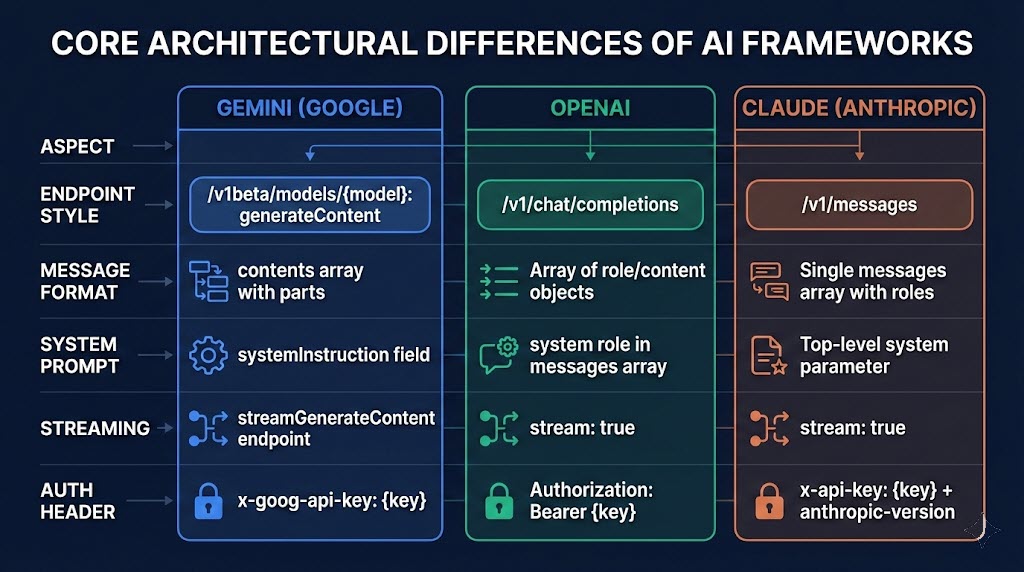
Architectural AI Frameworks
Set up for Google Gmini’s API
When using any of the samples below, ensure to set your API key using the x-goog-api-key header!
Generating Text with Gemini
When I interact with Gemini for text generation, there is one major architectural difference I always have to keep in mind: Google puts the model name directly in the API URL, rather than passing it as a parameter inside the JSON payload.
When I structure my JSON requests, I define my “system instructions” (the hard-coded behavior guidelines) and the “contents” (the user prompt). Cost-wise, I’ve found calling the flagship Gemini Pro models is highly competitive, generally running around $2 per million input tokens and $12 per million output tokens.
Check out Google’s Gemini 3 Documentation – https://ai.google.dev/gemini-api/docs/gemini-3
Gemini 3.1 Pro using the API
Gemini 3.1 Pro: https://generativelanguage.googleapis.com/v1beta/models/gemini-3.1-pro-preview:generateContent

{
    "system_instruction": {
        "parts": [
            {
                "text": "You are an expert SEO resource show can create SEO rich and virial YouTube video ideas. "
            }
        ]
    },
    "contents": [
        {
            "parts": [
                {
                    "text": "Create 3 YouTube short ideas about AI in the news today.  "
                }
            ]
        }
    ]
}
Image Generation: ImageGen vs. Nano Banana
I love that Google Gemini offers incredibly flexible image generation and editing tools. There are two primary models I like to interact with:
-
ImageGen 4.0: I use this mostly for creating presentations and stock photos from scratch. I can pass in parameters for aspect ratios, set the resolution to 1K or 2K, and generate up to four images at a time based on a single prompt.
-
Nano Banana: This model is designed for image editing and merging. It allows me to pass in existing images as Base64-encoded text, making it perfect for dynamic image manipulation workflows.
My Pro Tip: API responses for images often return as Base64-encoded text. I highly recommend using tools like Postman to write simple post-processing visualization scripts so you can preview your generated images right in your workspace!
Check out Google’s documentation on Imagen (https://ai.google.dev/gemini-api/docs/imagen) and Nano Banana (https://ai.google.dev/gemini-api/docs/image-generation) online!
ImaGen and Nana Banana Image Generation using the API
Imagen3: https://generativelanguage.googleapis.com/v1beta/models/imagen-4.0-generate-001:predict
{
    "instances": [
        {
            "prompt": "Frog on a log with a hat and a bat"
        }
    ],
    "parameters": {
        "outputMimeType": "image/jpeg",
        "sampleCount": 4,
        "aspectRatio": "1:1",
        "imageSize": "1K"
    }
}

Nana Banana: https://generativelanguage.googleapis.com/v1beta/models/gemini-3-pro-image-preview:generateContent
{
    "contents": [
        {
            "parts": [
                {
                    "text": "Frog on a log with a hat and a bat"
                }
            ]
        }
    ],
    "generationConfig": {
        "imageConfig": {
            "aspectRatio": "1:1"
        }
    }
}
Video Generation: The 3-Step Process
One of the most exciting features I’ve explored in the Gemini ecosystem is video generation via the Voe 3.1 model. Unlike text or images, which return near-instant results, I found that generating video requires an asynchronous three-step process:
- The Initial Request: I send my prompt (e.g., “A claw game picking up a large orange cat”) and receive a tracking ID/URL in return.
- The Status Check: I make a GET request to the tracking URL. If it returns
done=true, my video is ready. If not, it is still processing. - The Download: Once processing is complete, I use the final provided URL to download my newly generated MP4.
A quick warning on pricing: Video generation is billed per second of generated footage (currently around $0.40 for HD or $0.60 for 4K). Be careful when automating these calls, as I learned the hard way that costs can add up quickly if left unchecked!
Check out Google’s Documentation about Veo 3.1 – https://ai.google.dev/gemini-api/docs/video
Veo 3.1 Video Generation using the API
Step 1: https://generativelanguage.googleapis.com/v1beta/models/veo-3.1-generate-preview:predictLongRunning
{
    "instances": [
        {
            "prompt": "A claw game filled with a few cats.  The claw is moving, picks up a large orange-yellow cat, and drops it because it's too big. "
        }
    ]
}

Step 2: GET: https://generativelanguage.googleapis.com/v1beta/models/veo-3.1-generate-preview/operations/<Token>

Step 3: GET: https://generativelanguage.googleapis.com/v1beta/files/<Token>:download?alt=media
Start Building Today!
The best way I’ve found to experiment with the Google Gemini API is to set up my RESTful calls in Postman. Once I have successfully formatted my JSON requests and handled the required API key headers, I can easily port these API calls into my custom applications or enterprise workflow tools like Azure Logic Apps.
With its unified approach to handling text, images, and video, I truly believe the Gemini API is a formidable tool for developers looking to push the boundaries of AI integration.
Recent Comments